Z-Image IP-Adapter Reference Image Style Transfer: Copy Any Style Without Training
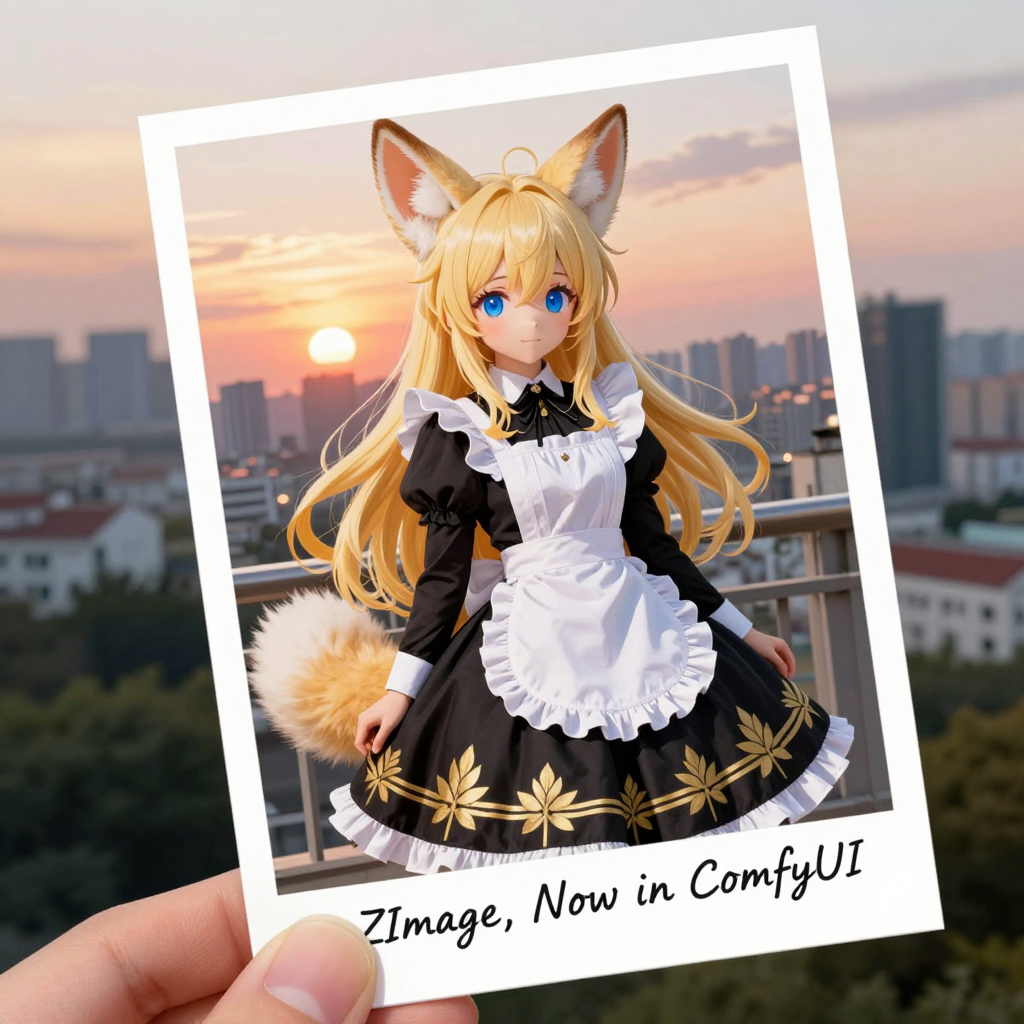
Abstract: This article systematically introduces Z-Image's IP-Adapter-based reference image style transfer technology, covering IP-Adapter core principles, in-depth comparison with LoRA, ComfyUI plugin installation guide, style transfer/face reference/joint workflow building, parameter tuning strategies, and common troubleshooting. No training, no dataset preparation needed — one reference image can replicate any art style. Suitable for ComfyUI advanced users and AI art creators.
I. What is IP-Adapter? Why Is It So Important?
1.1 IP-Adapter Core Concepts
IP-Adapter (Image Prompt Adapter) is a technology that injects reference images as "visual prompts" into diffusion models. Unlike traditional text prompts, IP-Adapter lets you speak with images directly — provide a style reference image, and the model can learn and transfer visual features such as color, brushwork, lighting, and composition.
Traditional method: Describe style in text → "Oil painting style, Van Gogh brushstrokes, warm tones..."
IP-Adapter: Drop a reference image directly → Model automatically extracts style features
1.2 Core Value
- Zero training cost: No dataset preparation, no LoRA training, no hyperparameter tuning needed
- Plug and play: Load a reference image to switch styles; try multiple styles quickly with the same workflow
- High style fidelity: Image features extracted via CLIP Vision are more accurate than text descriptions at reproducing style details
- Flexible combination: Can be stacked with ControlNet, LoRA, and other control methods
1.3 Technical Principle Overview
The IP-Adapter workflow can be divided into three key steps:
- CLIP Vision Encoding: The reference image is encoded into an image feature vector through the CLIP Vision model
- Cross-Attention Injection: Image features are injected into every layer of the UNet via the Cross-Attention mechanism
- Style Fusion Generation: The diffusion model simultaneously references text prompts and image features during sampling, generating new images that fuse the reference style
Reference image → CLIP Vision Encoder → Image feature vector → Cross-Attention → UNet → Generation result
Text prompt → CLIP Text Encoder  → Text feature vector → Cross-Attention → UNet → Generation result
                                                      ↓
                                        Both features guide generation together
II. IP-Adapter vs LoRA: How to Choose?
2.1 Core Comparison
| Dimension | IP-Adapter | LoRA |
|---|---|---|
| Requires Training | ❌ No | ✅ Yes |
| Preparation Cost | Only 1 reference image needed | Needs 5-20+ training images |
| Training Time | 0 | Minutes to hours |
| Style Reproduction Accuracy | High (direct visual feature extraction) | Depends on training data quality |
| Flexibility | Change reference image anytime | Fixed model, switching requires reloading |
| Controllability | Via weight parameter | Via weight parameter |
| VRAM Usage | Medium (needs CLIP Vision + IP-Adapter weights) | Low (only LoRA weights) |
| Suitable Scenarios | Quick style transfer, experimental creation | Character consistency, long-term style reuse |
2.2 When to Choose IP-Adapter?
- Quick experimentation: Want to try a style but don't want to train LoRA
- Single reference: Only have one style reference image
- Frequent switching: Same project needs multiple style variants
- Commercial delivery: Client provided a reference image, need quick results
- NFT/Avatars: Batch avatar generation based on a specific art style
2.3 When to Choose LoRA?
- Character consistency: Need fixed character across scenes
- Long-term reuse: A style/character will be used repeatedly
- Fine control: Need to fine-tune and optimize the style
- VRAM constrained: LoRA is lighter when VRAM is tight
2.4 The Golden Combination: IP-Adapter + LoRA
Best practice is often combining both:
IP-Adapter (style transfer) + LoRA (character/detail enhancement) + ControlNet (structural constraint) = Ultimate controllable workflow
III. ComfyUI Plugin Installation Guide
3.1 Required Plugins
Z-Image uses the following core plugins to support IP-Adapter workflows:
| Plugin Name | Function | Installation Path |
|---|---|---|
| ComfyUI_IPAdapter_plus | IP-Adapter core functionality | custom_nodes/ComfyUI_IPAdapter_plus |
| ComfyUI_ControlNet | ControlNet structure control | custom_nodes/ComfyUI_ControlNet |
3.2 Installation Steps
Method 1: ComfyUI Manager One-Click Install (Recommended)
- Open the ComfyUI interface
- Click Manager → Install Custom Nodes
- Search
ComfyUI_IPAdapter_plus, click Install - Search
ComfyUI_ControlNet, click Install - Restart ComfyUI
Method 2: Manual Installation
# Enter ComfyUI custom nodes directory
cd /path/to/comfyui/custom_nodes

# Install IPAdapter_plus
git clone https://github.com/cubiq/ComfyUI_IPAdapter_plus.git
cd ComfyUI_IPAdapter_plus
pip install -r requirements.txt

# Install ControlNet (if not already installed)
cd ../
git clone https://github.com/Fannovel16/ComfyUI-ControlNet.git
cd ComfyUI-ControlNet
pip install -r requirements.txt
Method 3: Z-Image Built-in Installation
The Z-Image platform comes with the above plugins pre-installed. Simply drag and drop them into your ComfyUI workflow to use.
3.3 Model File Preparation
Model Downloads
| Model File | Purpose | Storage Path | Size |
|---|---|---|---|
ip-adapter-plus_sd15.bin |
General style transfer | models/ipadapter/ |
~700MB |
ip-adapter-plus-face_sd15.bin |
Face style transfer | models/ipadapter/ |
~700MB |
clip_vision_vit_h.pth |
CLIP Vision encoder | models/clip_vision/ |
~1.7GB |
Z-Image Platform Model Management
On the Z-Image platform's model management page, you can directly search and download IP-Adapter related models:
- Go to Model Management
- Search
ip-adapter-plus_sd15 - Click Download, model is automatically placed in the correct path
- Search
clip_vision_vit_h - Download and confirm path
3.4 System Requirements
| Configuration | Minimum | Recommended |
|---|---|---|
| VRAM | 6GB | 8GB+ (multiple models stacked) |
| CPU | 4 cores | 8 cores+ |
| RAM | 16GB | 32GB+ |
| Storage | 10GB available | SSD recommended |
| Python | 3.10+ | 3.11 |
Note: When loading IP-Adapter + ControlNet + CLIP Vision simultaneously, VRAM usage is high. 8GB VRAM minimum is recommended.
IV. Style Transfer Workflow (Step by Step)
4.1 Node Overview
┌─────────────┐
│  LoadImage  │──── Reference image input
└──────┬──────┘
       │
┌──────▼──────────────┐
│  CLIPVisionLoader   │──── Load CLIP Vision encoder
└──────┬──────────────┘
       │
┌──────▼──────────────┐
│ IPAdapterModelLoader│──── Load IP-Adapter model
└──────┬──────────────┘
       │
┌──────▼──────────────┐
│     IPAdapter       │──── Inject reference image features into UNet
└──────┬──────────────┘
       │
┌──────▼──────────────┐     ┌─────────────┐
│     KSampler        │◄────│   CLIP      │──── Text prompt encoding
└──────┬──────────────┘     └─────────────┘
       │
┌──────▼──────────────┐
│    VAEDecode        │──── Decode to final image
└──────┬──────────────┘
       │
┌──────▼──────────────┐
│   SaveImage         │──── Output result
└─────────────────────┘
4.2 Detailed Setup Steps
Step 1: Load Reference Image
Use the LoadImage node to load your style reference image.
Node: LoadImage
├── Input: Select reference image file
├── Recommended size: 512x512 / 768x768
└── Tip: Reference image quality directly affects transfer results
Reference Image Selection Tips:
- The more distinctive the style, the better the transfer effect
- Avoid overly complex or cluttered reference images
- Single-subject, style-unified images work best
- Art paintings, photographs, and illustrations can all serve as references
Step 2: Load CLIP Vision Encoder
Node: CLIPVisionLoader
├── Model selection: clip_vision_vit_h (OpenAI CLIP ViT-H)
├── Path confirmation: models/clip_vision/clip_vision_vit_h.pth
└── Description: Responsible for encoding the reference image into feature vectors
Step 3: Load IP-Adapter Model
Node: IPAdapterModelLoader
├── Model selection: ip-adapter-plus_sd15 (general style transfer)
├── Path confirmation: models/ipadapter/ip-adapter-plus_sd15.bin
└── Description: Core adapter model
Step 4: Configure IP-Adapter Node
Node: IPAdapterApply
├── model: Model input from KSampler
├── ipadapter: IPAdapterModelLoader output
├── clip_vision: CLIPVisionLoader output
├── image: Reference image output from LoadImage
├── weight: 0.6-0.8 (recommended range)
├── weight_type: linear or linear_attn (attention only)
└── start_at / end_at: 0.0 / 1.0 (active throughout)
Step 5: Configure Sampler (KSampler)
Node: KSampler
├── model: Output from IPAdapterApply
├── positive: CLIP Encode (positive prompt)
├── negative: CLIP Encode (negative prompt)
├── seed: Random or fixed seed
├── steps: 20-30 (recommended)
├── cfg: 5-7 (recommended)
├── sampler_name: dpmpp_2m / euler_ancestral
├── scheduler: karras / normal
└── denoise: 1.0 (text-to-image) / 0.3-0.7 (image-to-image)
Step 6: VAE Decoding and Output
Node: VAEDecode → SaveImage
├── Connect KSampler latents output to VAEDecode
├── Load corresponding VAE model
└── SaveImage saves the final result
4.3 Prompt Writing Tips
IP-Adapter handles style transfer, prompts handle content guidance — they complement each other:
# ✅ Recommended format (concise + content description)
Positive: a young woman with long hair, portrait, upper body
Negative: low quality, blurry, deformed, ugly

# ❌ Format to avoid
Positive: oil painting style, thick brush strokes, warm tones...
(These style elements should be handled by IP-Adapter; repeating them in prompts may interfere with transfer results)
V. Face Reference Workflow
5.1 Face-Specific Model
IP-Adapter provides a variant model specifically for facial features:
| Model | Suitable Scenario | Characteristics |
|---|---|---|
| ip-adapter-plus-face_sd15 | Face style transfer | Preserves facial features while transferring style |
| ip-adapter-plus_sd15 | General style transfer | Global style feature extraction |
5.2 Face Reference Workflow Setup
The face workflow is similar to general style transfer, with core differences:
Node differences:
├── IPAdapterModelLoader → ip-adapter-plus-face_sd15.bin (replace model)
├── IPAdapterApply weight recommended 0.8-1.0 (face needs stronger control)
└── Reference image selection: Clear front-facing face photo
5.3 Face Reference Image Requirements
- Front-facing angle: Reference image should be front-facing or slightly angled
- High clarity: Avoid blurry or low-resolution photos
- Even lighting: Strong shadows will affect feature extraction
- Natural expression: The reference expression will partially transfer to the generation result
5.4 Application Scenarios
- NFT avatar series: Batch avatar generation based on a unified style
- Character stylization: Transfer real photos into specific art styles
- Cross-style consistency: Same character expressed in different art styles
VI. IP-Adapter + ControlNet Joint Workflow
6.1 Why Combine Them?
Using IP-Adapter alone can transfer style, but structural control is limited. With ControlNet added, you can simultaneously control:
IP-Adapter → Controls style (color, brushwork, lighting)
ControlNet → Controls structure (pose, edges, depth)
6.2 Joint Workflow Architecture
┌─────────────┐     ┌──────────────┐
│  LoadImage  │────►│ ControlNet   │────┐
│  (ref image)│     │  Loader      │    │
└──────┬──────┘     └──────────────┘    │
       │                                ▼
┌──────▼──────────────┐     ┌──────────────────┐
│  CLIPVisionLoader   │────►│   IPAdapterApply  │────┐
└─────────────────────┘     └──────────────────┘    │
                                                     ▼
┌──────────────┐     ┌──────────────────┐     ┌──────────────┐
│ ControlNet   │────►│                  │     │              │
│ Preprocessor │     │   KSampler       │◄────│   CLIP Encode│
└──────────────┘     │                  │     │              │
                     └────────┬─────────┘     └──────────────┘
                              │
                     ┌────────▼─────────┐
                     │    VAEDecode     │────► SaveImage
                     └──────────────────┘
6.3 ControlNet Model Selection
| ControlNet Type | Control Content | Suitable Scenario |
|---|---|---|
| Canny | Edge contours | Maintain object shape and boundaries |
| Depth | Depth information | Maintain spatial layer relationships |
| OpenPose | Human pose | Maintain character posture |
| Lineart | Line drawing | Anime/illustration style maintenance |
6.4 Weight Allocation Strategy
Recommended weight combination:
├── IP-Adapter weight: 0.5-0.7 (style control)
├── ControlNet weight: 0.6-0.8 (structural control)
├── CFG Scale: 5-7 (prompt control strength)
└── Adjustment priority: Set ControlNet weight first, then tune IP-Adapter weight
Tuning tip: If the style isn't obvious enough, gradually increase IP-Adapter weight. If the structure shifts, increase ControlNet weight or reduce IP-Adapter weight.
VII. Parameter Tuning Guide
7.1 IP-Adapter Weight
Weight controls how strongly the reference image style affects the generation result:
| Weight Range | Effect | Suitable Scenario |
|---|---|---|
| 0.0-0.3 | Style influence minimal | Slight style inclination |
| 0.3-0.5 | Light style transfer | Maintain original style primarily |
| 0.5-0.8 | Obvious style transfer | Most commonly used range |
| 0.8-1.0 | Strong style transfer | Need complete match with reference style |
| 1.0+ | Over-stylized | May cause image anomalies |
7.2 Weight Type
| Type | Scope | Characteristics |
|---|---|---|
| linear | All layers | Most common, applied evenly overall |
| linear_attn | Cross-Attention layers only | More refined, more natural style transfer |
| channel_penultimate | Penultimate layer | Suitable for specific style needs |
7.3 Start At / End At (Activation Range)
Control which stage of the sampling process the IP-Adapter is active:
| Parameter | Meaning | Recommended Value |
|---|---|---|
| start_at | From which step to start activating | 0.0 (from the beginning) |
| end_at | At which step to stop activating | 0.8-1.0 |
# Common configurations
start_at=0.0, end_at=1.0  → Active throughout (default)
start_at=0.0, end_at=0.8  → Active in early stage, prompt dominates later (more natural)
start_at=0.2, end_at=1.0  → Skip initial stage, reduce over-stylization
7.4 Other Key Parameters
| Parameter | Recommended Range | Description |
|---|---|---|
| steps | 20-30 | Too few steps and style transfer is incomplete |
| CFG Scale | 5-7 | Too high suppresses IP-Adapter effect |
| sampler | dpmpp_2m | Sampler with better style transfer results |
| scheduler | karras | Works well with dpmpp_2m |
| resolution | 512x512 or 768x768 | Match training resolution |
7.5 Tuning Process
Step 1: Fix seed, generate baseline with weight=0.6
Step 2: If style not strong enough → increase weight by +0.1 each time
Step 3: If style too strong → decrease weight by -0.1 each time
Step 4: Try different weight_type and observe differences
Step 5: Adjust start_at/end_at to fine-tune style distribution
Step 6: When using with ControlNet, set structure first, then tune style
VIII. Common Issues and Troubleshooting
8.1 Style Transfer Effect Not Obvious
Possible causes and solutions:
| Cause | Solution |
|---|---|
| IP-Adapter weight too low | Try 0.7-0.9 |
| Reference image style not distinctive | Choose a reference image with more prominent style features |
| Style description conflicts in prompt | Remove style-related descriptions from prompt |
| CFG Scale too high | Reduce to 5-6 |
| CLIP Vision model not correctly loaded | Check model path and file integrity |
8.2 Abnormal Artifacts in Generation
Possible causes and solutions:
| Cause | Solution |
|---|---|
| IP-Adapter weight too high | Reduce to 0.5-0.7 |
| VAE mismatch | Ensure using the VAE corresponding to the base model |
| Resolution mismatch | Use 512x512 or 768x768 |
| Insufficient steps | Increase to 25-30 |
8.3 Insufficient VRAM (OOM)
Solutions:
1. Close unnecessary models (LoRA, other ControlNets)
2. Use FP16 precision inference
3. Reduce output resolution
4. Launch ComfyUI with --lowvram parameter
5. Prioritize Lite versions of ControlNet models
8.4 Model Files Not Found
Troubleshooting steps:
1. Confirm files are in the correct directories:
   - IP-Adapter models → models/ipadapter/
   - CLIP Vision models → models/clip_vision/
   - Base models → models/checkpoints/
   - LoRA models → models/loras/

2. Restart ComfyUI to refresh model list

3. Check if files are complete (download wasn't interrupted)

4. Confirm file naming is correct (some plugins are sensitive to naming)
8.5 Plugin Compatibility Issues
Common situations:
| Issue | Solution |
|---|---|
| IPAdapter node not found | Confirm ComfyUI_IPAdapter_plus is installed and restart |
| Node output type mismatch | Check node version, update plugin to latest |
| ControlNet and IP-Adapter conflict | Ensure correct connection order: IPAdapterApply → KSampler |
| Plugin breaks after ComfyUI update | Reinstall/update plugin, clear cache |
8.6 Poor Face Transfer Results
Specific troubleshooting:
| Issue | Solution |
|---|---|
| Facial features lost | Confirm using face-specific model |
| Face deformation | Reduce weight to 0.7-0.8 |
| Unnatural expression | Choose reference photo with natural expression |
| Inconsistent with background style | Use ControlNet to maintain overall structure |
IX. Practical Case: NFT Avatar Batch Generation
9.1 Project Overview
Leveraging IP-Adapter's zero-training feature to quickly generate a series of stylistically unified but content-diverse avatars:
Reference image: 1 art-style avatar
Prompt variations: Different character descriptions (hairstyle, clothing, background)
Output: 50-100 stylistically unified avatars
9.2 Workflow Configuration
IP-Adapter weight: 0.7 (ensure style consistency)
CFG Scale: 6
Steps: 25
Sampler: dpmpp_2m
Scheduler: karras
Resolution: 512x512
9.3 Batch Prompt Template
# Base template
a portrait of a {gender} with {hair_style} hair, wearing {clothing}, {background}

# Variable substitution examples
{gender} → young woman / handsome man / child
{hair_style} → long curly / short spiky / flowing blonde
{clothing} → red dress / leather jacket / casual hoodie
{background} → city street at night / forest with sunlight / studio white
X. Summary and Best Practices
10.1 IP-Adapter Core Advantages Recap
- Zero training: No dataset, no training time needed, plug and play
- Flexible switching: Change a reference image = change a style
- High precision: Visual feature extraction is more accurate than text description
- Composable: Works seamlessly with ControlNet and LoRA
10.2 Best Practices Checklist
✅ Reference Image Selection
   - Distinctive style, clear subject
   - Avoid complex backgrounds and cluttered elements
   - Face reference uses clear front-facing photos

✅ Parameter Tuning
   - Start with weight=0.6, adjust gradually
   - When using with ControlNet, set structure first then tune style
   - Use dpmpp_2m + karras combination

✅ Prompt Writing
   - Prompts focus on content description
   - Avoid repeating style descriptions in prompts
   - Keep negative prompts concise

✅ Performance Optimization
   - 8GB+ VRAM for smooth operation
   - Close unnecessary models
   - Use FP16 precision

✅ Quality Check
   - Fix seed to compare different parameter effects
   - Check edges and details for naturalness
   - Confirm balance between style transfer and content generation
10.3 Advanced Directions
- IP-Adapter + Regional Prompter: Zoned style control
- IP-Adapter + AnimateDiff: Video style transfer
- IP-Adapter + Multi-ControlNet: Multiple structural constraints
- IP-Adapter + LoRA Joint Fine-tuning: Style + detail dual enhancement
Final Words: The emergence of IP-Adapter has brought AI art style control to a new level. It breaks the paradigm of "train one model = one style," making creation more flexible and efficient. Combined with Z-Image platform's ease of use and ComfyUI's flexibility, you can easily achieve the full process from inspiration reference to high-quality output. Start trying — use one image to unlock infinite possibilities!